

Student Technology Guide
Welcome to UP!
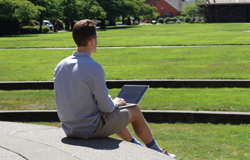
Welcome to the Bluff! Information Services is here to help get you connected, guide you to our student technology resources, and keep your data safe. The links below will get you started.
If you have any technology-related questions, please contact the Help Desk.

Before Coming To Campus
Follow the links provided under each heading below to prepare your account for your time at UP!
Step One: Activating Your Account
Use this link to activate your account and log in for the first time! You MUST do this in order to access your student dashboard, classes, and more.
You can typically follow these instructions as soon as you receive your student email, but may need to allow up to 24 hours for it to fully sync.
The University of Portland uses Microsoft as our account provider, but your student email will end with "@up.edu". Learn more about account management and find instructions on tasks like changing your password.
Step Two: Securing your Account
Once you have followed the linked instructions to activate your account above, you can set up Multi-Factor Authentication (MFA) to strengthen the security of your University of Portland account. This protects your personal information from unauthorized access or cyberattacks.
MFA is REQUIRED for all students. We recommend setting it up as soon as possible to avoid getting locked out of your account. If you have any trouble with setup (or get a new phone and need to transfer your MFA to a new device), please contact the Help Desk.
Find out more about how UP keeps your data secure and what you can do to prevent cyberattacks.
Step Three: Accessing Student Resources
Once your account has been activated and your MFA has been configured, you can access your University of Portland online portal: PilotsUP (https://pilots.up.edu) . This dashboard has announcements, links to all the important systems, and internal information from offices like Residence Life and the Registrar to help you get important tasks done.
PilotsUP also includes MyApps, a one-stop portal to all the applications and systems that your UP login can get you into. That includes critical online services like Canvas, the Learning Management System used in UP courses.
Students are also granted the full Microsoft Office suite (Word, Excel, OneNote, etc.) and 1 terabyte of OneDrive storage while actively affiliated with UP. Find more information on all of the technology services available to you via your student account.
Please note that you MUST activate your account before you can access these resources.
Computer and Related Equipment
All students should plan on bringing a laptop with an integrated camera that meets the recommended technical specifications for academic use.
- We recommend Windows or Macintosh laptops. Devices such as Chromebooks or iPads may have compatibility problems with certain academic softwares
- The School of Nursing has specific requirements to accommodate computerized testing
We also recommend:
- A set of headphones (with a microphone) for a quality audio experience
- A portable charger to ensure connectivity throughout the day
If for any reason a student is unable to bring a device to campus for academic use, a limited number of student loaner laptops are available through the Clark Library. Alternatively, students can inquire with the Office of Financial Aid about financial assistance for the purchase of an academic laptop (finaid@up.edu or 503.943.7311).
Once You Arrive
Internet Access (Wi-Fi)
UP offers a WiFi network specifically for students: UPStudent. Once you have activated your account you can connect most computers, phones, and tablets to this network using your student credentials.
You may also need to use the UPIoT network when connecting certain kinds of devices, or you may prefer to use Ethernet in your dorm. Read more about getting connected and find instructions here.
Calling
Most students make use of a personal cellphone for calling. Please note that cellular signal strength within buildings varies throughout campus.
If needed, students can contact the Help Desk to request a land line in their room for the term.
Printing
There are printers available for student use in every dorm, the library, computer labs, and several other central locations on campus. Read more about printing.
Please note that personal printers that connect directly to your computer via USB or Bluetooth are allowed, but printers that require a Wi-Fi or Ethernet connection are not permitted.
Mobile Apps
Several useful apps are available on the App Store for iPhone and iPad and on Google Play for Android devices, such as:
- UPMobile: Access University of Portland information and services anytime, anywhere with UPMobile! This app helps students stay up-to-date with campus events and provides an easy way to access information such as class schedules and dining menus.
- Microsoft Authenticator: Use one convenient app for signing in to all UP services! See the "Multi-Factor Authentication" step above for more information.
- Office Apps: Outlook, Word, Excel, and other Microsoft apps are available for download on iOS and Android devices!
Final Tips
- Never share your password or authentication codes with anyone (even tech support).
- Familiarize yourself with UP's Technology Use, Mass Email, and Password Policies.
- If you have any questions or run into problems with any of the above steps, don't hesitate to contact the Help Desk for support!
